
Technical Review - 2005/01
Jim Ryan 6941 Rob Vern Dr., Cincinnati OH 45239; E-mail: jimryan@fnse.net
Multiplex Royal Evo 12
I first handled the Multiplex Royal Evo 12 transmitter at the 2003 Toledo, Ohio, Weak Signals Expo, and after a few minutes of discussing its features with product-line manager Glen Merritt, I knew I wanted one. Unfortunately the initial demand exceeded the limited supply, but I was eventually able to purchase one. It was well worth the wait.
Several features set the Royal Evo apart from the Asian radios that dominate the US market. They are:
- Model memories. The Royal Evo 12 offers 36 model memories—more than you’ll find on nearly any other radio sold in the US. This feature first attracted me to the Evo because I like having a single transmitter to master, maintain, and transport.
- Frequency synthesizer. The Royal Evo is available with a radio frequency (RF) synthesizer module that allows the operator to switch to any frequency in a matter of seconds. Furthermore, it has a more “goofproof” selection procedure than other synthesizer modules available in the US.
- Assignable functions. The Royal Evo gives the user almost infinite flexibility in assigning functions to the transmitter’s various sticks, sliders, knobs, and buttons. Also, each socket on the receiver can be assigned to any servo and any function.
Modelers who are familiar with high-end European radios know that these features are not unique to the Royal Evo line. European radios commonly feature more model memories and greater flexibility than the mass-market radios sold in the US. But those radios are tray-type units that are much bulkier and usually heavier.
This isn’t a defect; it’s simply a difference in design philosophy, but most US modelers seem to prefer the more compact Asian-style transmitters. The Evo is unusual in combining the features and flexibility of a European radio with the compact, lightweight size of an Asian radio.
In the Evo world, the sticks, sliders, toggle switches, and buttons are collectively known as “widgets.” This is to differentiate them from actual hardware “switches” on the transmitter box and software “switches” such as dual rate selection or starting/stopping a timer.
Overall Tour
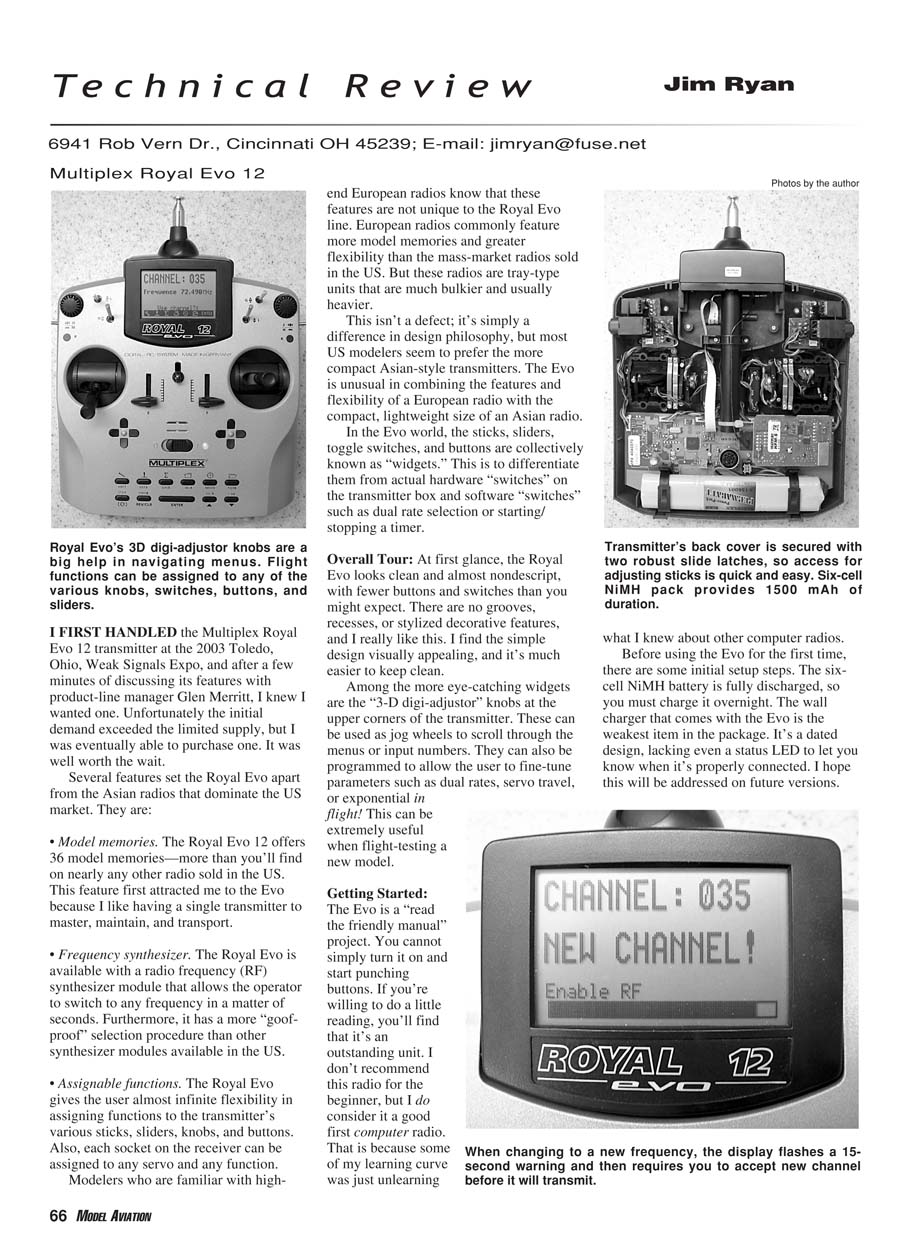
At first glance, the Royal Evo looks clean and almost nondescript, with fewer buttons and switches than you might expect. There are no grooves, recesses, or stylized decorative features, and I really like this. I find the simple design visually appealing, and it’s much easier to keep clean.
Among the more eye-catching widgets are the “3-D digi-adjustor” knobs at the upper corners of the transmitter. These can be used as jog wheels to scroll through the menus or input numbers. They can also be programmed to allow the user to fine-tune parameters such as dual rates, servo travel, or exponential in flight. This can be extremely useful when flight-testing a new model.
Getting Started
The Evo is a “read the friendly manual” project. You cannot simply turn it on and start punching buttons. If you’re willing to do a little reading, you’ll find that it’s an outstanding unit. I don’t recommend this radio for the beginner, but I do consider it a good first computer radio. That is because some of my learning curve was just unlearning what I knew about other computer radios.
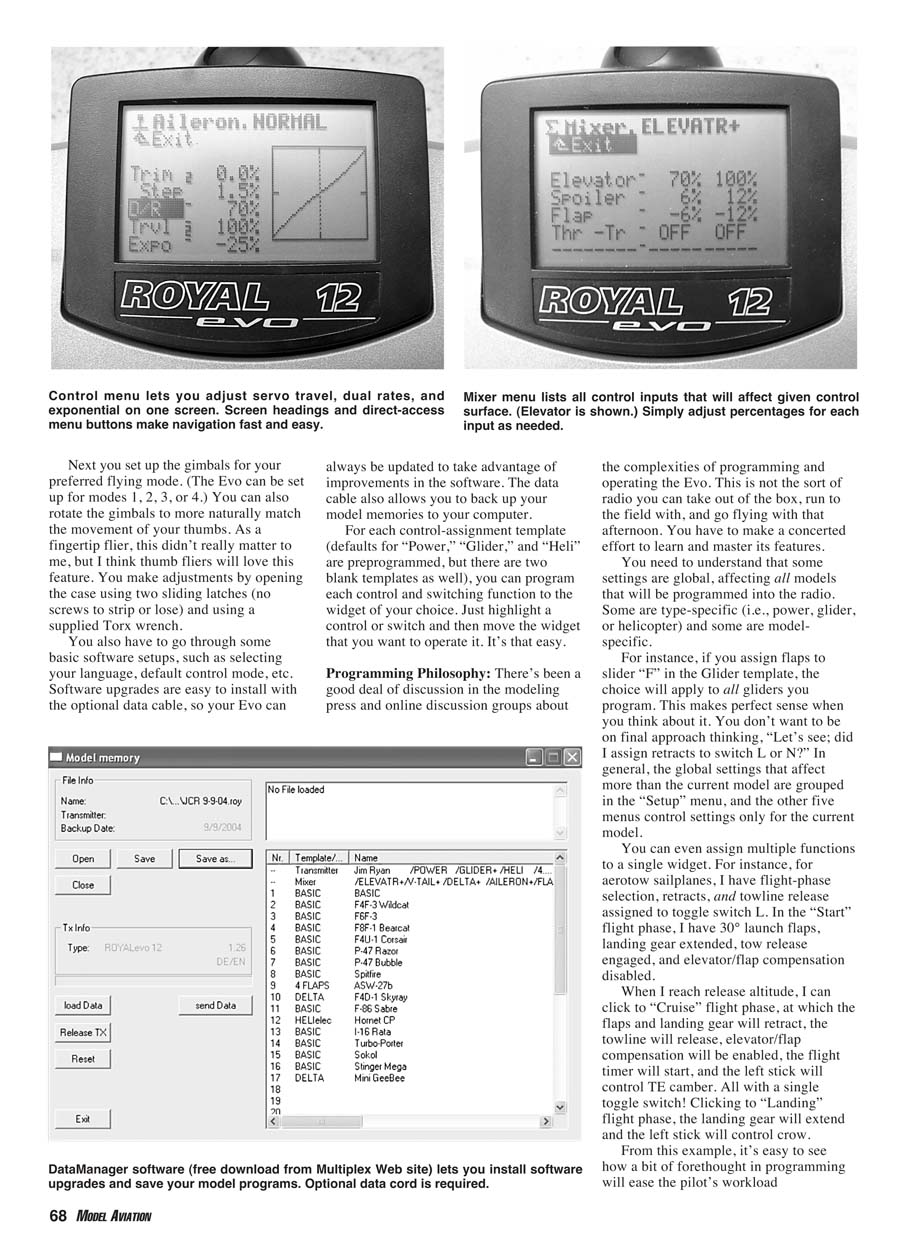
Before using the Evo for the first time, there are some initial setup steps. The six-cell NiMH battery ships fully discharged, so you must charge it overnight. The wall charger that comes with the Evo is the weakest item in the package. It’s a dated design, lacking even a status LED to let you know when it’s properly connected. I hope this will be addressed in future versions.
Next you set up the gimbals for your preferred flying mode. (The Evo can be set up for modes 1, 2, 3, or 4.) You can also rotate the gimbals to more naturally match the movement of your thumbs. As a fingertip flier, this didn't really matter to me, but I think thumb fliers will love this feature. You make adjustments by opening the case using two sliding latches (no screws to strip or lose) and using a supplied Torx wrench.
You also have to go through some basic software setups, such as selecting your language and default control mode. Software upgrades are easy to install with the optional data cable, so your Evo can always be updated to take advantage of improvements in the software. The data cable also allows you to back up your model memories to your computer.
For each control-assignment template (defaults for "Power," "Glider," and "Heli" are preprogrammed, and there are two blank templates as well), you can program each control and switching function to the widget of your choice. Just highlight a control or switch and then move the widget that you want to operate it. It's that easy.
Programming Philosophy
There's been a good deal of discussion in the modeling press and online groups about the complexities of programming and operating the Evo. This is not the sort of radio you can take out of the box, run to the field with, and go flying that afternoon. You have to make a concerted effort to learn and master its features.
You need to understand that some settings are global, affecting all models that will be programmed into the radio. Some are type-specific (i.e., power, glider, or helicopter) and some are model-specific.
For instance, if you assign flaps to slider "F" in the Glider template, the choice will apply to all gliders you program. This makes perfect sense when you think about it. You don't want to be on final approach thinking, "Let's see; did I assign retracts to switch L or N?" In general, the global settings that affect more than the current model are grouped in the "Setup" menu, and the other five menus control settings only for the current model.
You can even assign multiple functions to a single widget. For instance, for aerobatic sailplanes, I have flight-phase selection, retracts, and towline release assigned to toggle switch L. In the "Start" flight phase, I have 30° launch flaps, landing gear extended, tow release engaged, and elevator/flap compensation disabled.
When I reach release altitude, I can click to "Cruise" flight phase, at which the flaps and landing gear will retract, the towline will release, elevator/flap compensation will be enabled, the flight timer will start, and the left stick will control TE camber. All with a single toggle switch! Clicking to "Landing" flight phase, the landing gear will extend and the left stick will control crow.
From this example, it's easy to see how a bit of forethought in programming will considerably ease the pilot's workload—even for a complex eight-servo scale sailplane.
Frequency Synthesizer
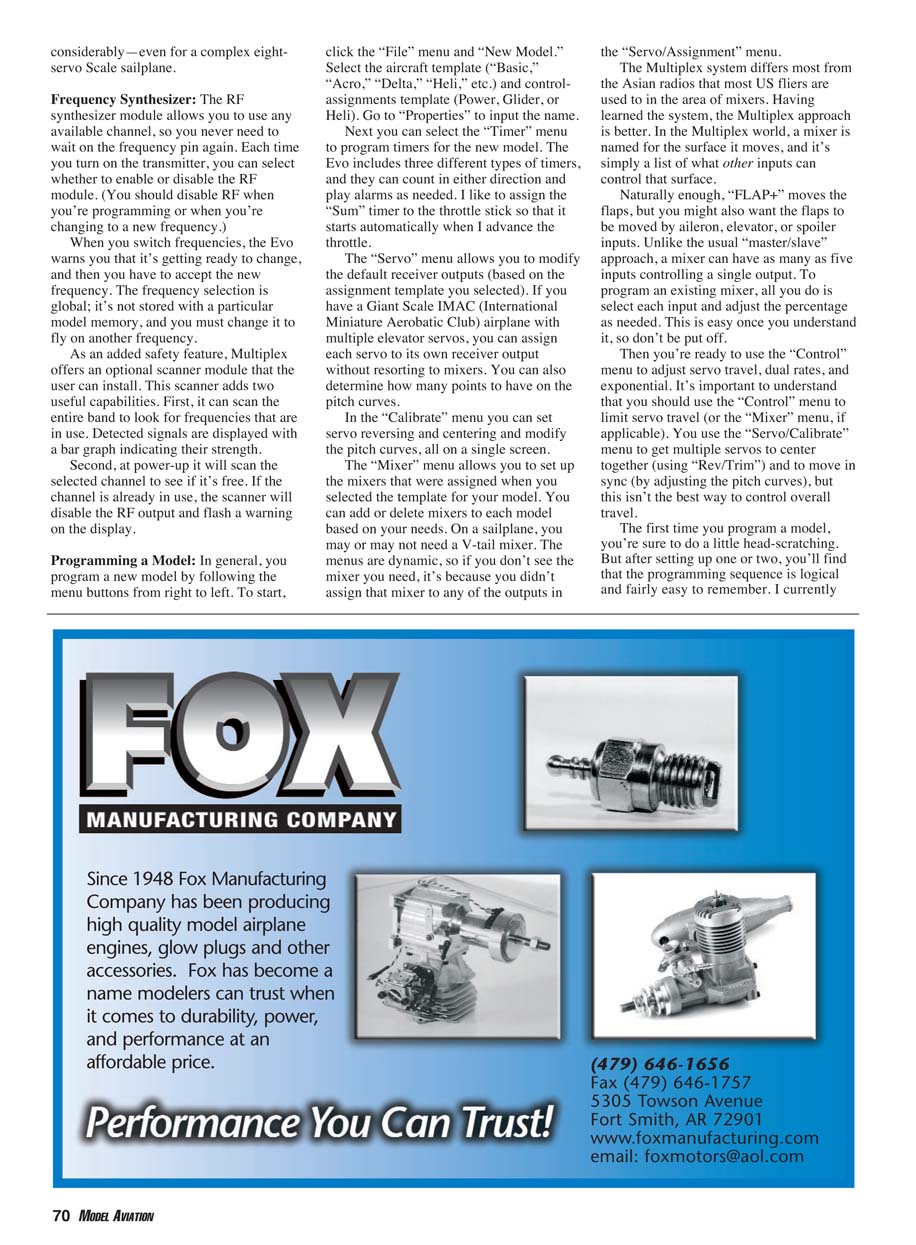
The RF synthesizer module allows you to use any available channel, so you never need to wait on the frequency pin again. Each time you turn on the transmitter, you can select whether to enable or disable the RF module. (You should disable RF when you're programming or when you're changing to a new frequency.)
When you switch frequencies, the Evo warns you that it's getting ready to change, and then you have to accept the new frequency. The frequency selection is global; it's not stored with a particular model memory, and you must change it to fly on another frequency.
As an added safety feature, Multiplex offers an optional scanner module that the user can install. This scanner adds two useful capabilities. First, it can scan the entire band to look for frequencies that are in use. Detected signals are displayed with a bar graph indicating their strength. Second, at power-up it will scan the selected channel to see if it's free. If the channel is already in use, the scanner will disable the RF output and flash a warning on the display.
Programming a Model
In general, you program a new model by following the menu buttons from right to left. To start, click the "File" menu and "New Model." Select the aircraft template ("Basic," "Acro," "Delta," "Heli," etc.) and control-assignments template (Power, Glider, or Heli). Go to "Properties" to input the name.
Next you can select the "Timer" menu to program timers for the new model. The Evo includes three different types of timers, and they can count in either direction and play alarms as needed. I like to assign the "Sum" timer to the throttle stick so that it starts automatically when I advance the throttle.
The "Servo" menu allows you to modify the default receiver outputs (based on the assignment template you selected). If you have a Giant Scale IMAC (International Miniature Aerobatic Club) airplane with multiple elevator servos, you can assign each servo to its own receiver output without resorting to mixers. You can also determine how many points to have on the pitch curves.
In the "Calibrate" menu you can set servo reversing and centering and modify the pitch curves, all on a single screen.
The "Mixer" menu allows you to set up the mixers that were assigned when you selected the template for your model. You can add or delete mixers to each model based on your needs. On a sailplane, you may or may not need a V-tail mixer. The menus are dynamic, so if you don't see the mixer you need, it's because you didn't assign that mixer to any of the outputs in the "Servo/Assignment" menu.
The Multiplex system differs most from the Asian radios that most US fliers are used to in the area of mixers. Having learned the system, the Multiplex approach is better. In the Multiplex world, a mixer is named for the surface it moves, and it's simply a list of what other inputs can control that surface.
Naturally enough, "FLAP+" moves the flaps, but you might also want the flaps to be moved by aileron, elevator, or spoiler inputs. Unlike the usual "master/slave" approach, a mixer can have as many as five inputs controlling a single output. To program an existing mixer, all you do is select each input and adjust the percentage as needed. This is easy once you understand it, so don't be put off.
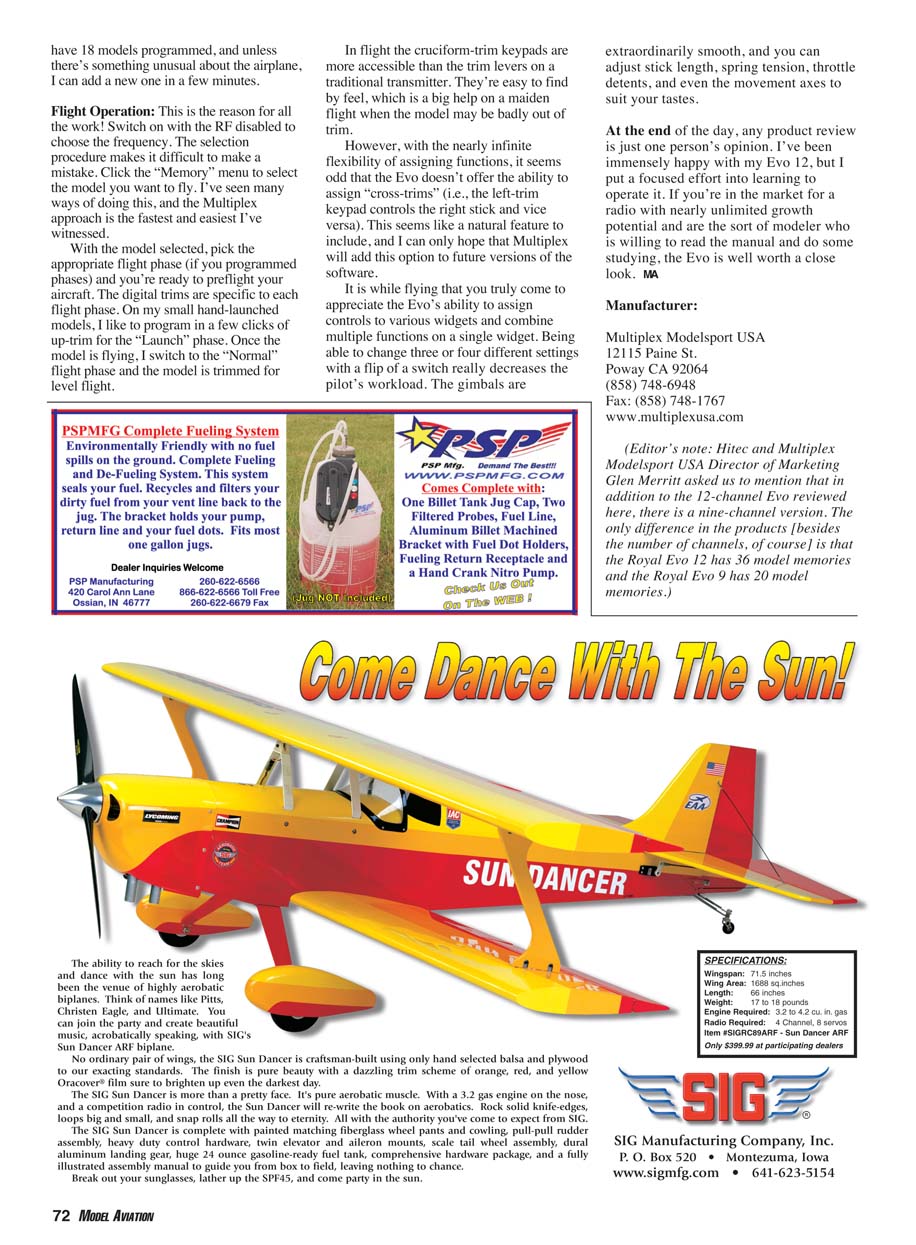
Then you're ready to use the "Control" menu to adjust servo travel, dual rates, and exponential. It's important to understand that you should use the "Control" menu to limit servo travel (or the "Mixer" menu, if applicable). You use the "Servo/Calibrate" menu to get multiple servos to center together (using "Rev/Trim") and to move in sync (by adjusting the pitch curves), but this isn't the best way to control overall travel.
The first time you program a model, you're sure to do a little head-scratching. But after setting up one or two, you'll find that the programming sequence is logical and fairly easy to remember. I currently have 18 models programmed, and unless there's something unusual about the airplane, I can add a new one in a few minutes.
Flight Operation
This is the reason for all the work! Switch on with the RF disabled to choose the frequency. The selection procedure makes it difficult to make a mistake. Click the "Memory" menu to select the model you want to fly. I've seen many ways of doing this, and the Multiplex approach is the fastest and easiest I've witnessed.
With the model selected, pick the appropriate flight phase (if you programmed phases) and you're ready to preflight your aircraft. The digital trims are specific to each flight phase. On my small hand-launched models, I like to program in a few clicks of up-trim for the "Launch" phase. Once the model is flying, I switch to the "Normal" flight phase and the model is trimmed for level flight.
In flight the cruciform-trim keypads are more accessible than the trim levers on a traditional transmitter. They're easy to find by feel, which is a big help on a maiden flight when the model may be badly out of trim.
However, with the nearly infinite flexibility of assigning functions, it seems odd that the Evo doesn't offer the ability to assign "cross-trims" (i.e., the left-trim keypad controls the right stick and vice versa). This seems like a natural feature to include, and I can only hope that Multiplex will add this option to future versions of the software.
It is while flying that you truly come to appreciate the Evo's ability to assign controls to various widgets and combine multiple functions on a single widget. Being able to change three or four different settings with a flip of a switch really decreases the pilot's workload. The gimbals are extraordinarily smooth, and you can adjust stick length, spring tension, throttle detents, and even the movement axes to suit your tastes.
At the end of the day, any product review is just one person's opinion. I've been immensely happy with my Evo 12, but I put a focused effort into learning to operate it. If you're in the market for a radio with nearly unlimited growth potential and are the sort of modeler who is willing to read the manual and do some studying, the Evo is well worth a close look. MA
Manufacturer
Multiplex ModelSport USA 12115 Paine St. Poway CA 92064 (858) 748-6948 Fax: (858) 748-1767 www.multiplexusa.com
Editor's note
Hitec and Multiplex ModelSport USA Director of Marketing Glen Merritt asked us to mention that in addition to the 12-channel Evo reviewed here, there is a nine-channel version. The only difference in the products (besides the number of channels, of course) is that the Royal Evo 12 has 36 model memories and the Royal Evo 9 has 20 model memories.
Transcribed from original scans by AI. Minor OCR errors may remain.

