
Way Up High in the Virtual Skies
by Mark Lanterman
Set the way-back machine for the early 1980s. You are standing in one of the larger hobby manufacturer/distributor facilities of the day. In a corner office you notice a few men huddled around what appears to be a television screen. All eyes are fixed on the screen and their faces are bathed in a green glow given off by whatever they are watching. When one of the men shifts his stance, you get a glimpse of the screen—and it's a monochrome computer monitor.
The image is mostly black, with a few animated green lines in the middle and some text along the bottom. Moving in closer you see that the green lines make up the outline of a rudimentary airplane and the numbers along the bottom reference height, distance, etc. There's no sound except for the keyboard clicking, but every so often the group lets out a collective "Ooh" or "Watch out!"
What this group is watching so intently is a computer program—the first of its kind—that is running on one of the original Apple personal computers. The program's author, a college professor, had just sold two of the first copies of his new program to a couple of guys in this group. Almost instantly a few telephone calls were made, a partnership was created, and the result was the birth of the Radio Control (RC) flight simulator. Notice that I wrote "Radio Control"; the military has been using various types of flight simulators to train its pilots since the 1930s, but they had been bulky and only available to those in the service. Not until the advent of the personal computer has this type of technology been available to help teach modelers to fly.
This first RC simulator was rough. The technology behind it was pushing computer technology to its limit. Loops and rolls were basically it as far as aerobatic capability. Since the simulator had no sound, color, scenery, or runway, it took quite a bit of imagination and dedication to fly. However, RC-pilot wanna-bes had this new method to use to learn how to fly.
Computers have advanced in capability through the years, and so have RC simulators. When color and sound became standard equipment, simulators roared to life and included vivid color graphics. As computer speeds increased, programmers were able to pack more complex calculations into their programs, improving the flight dynamics.
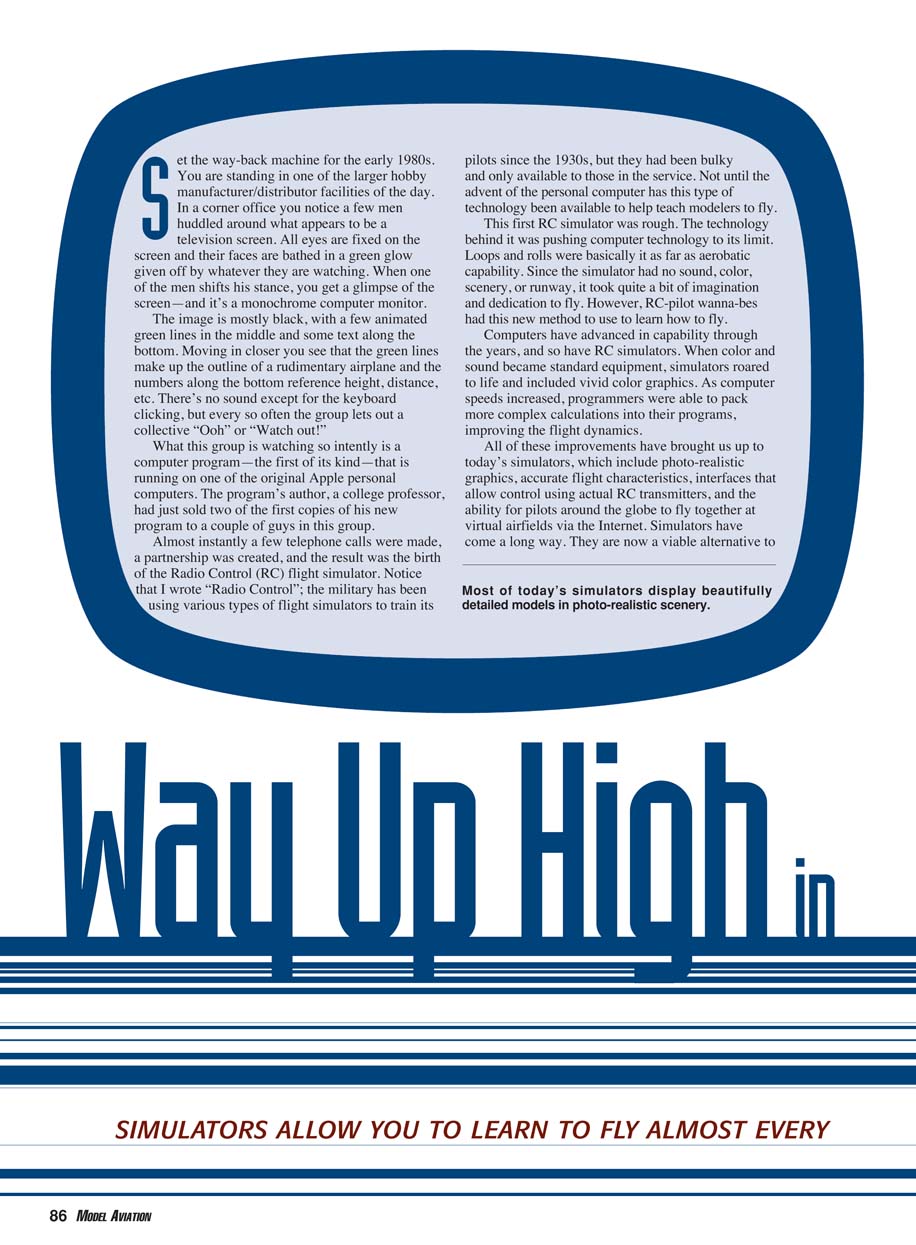
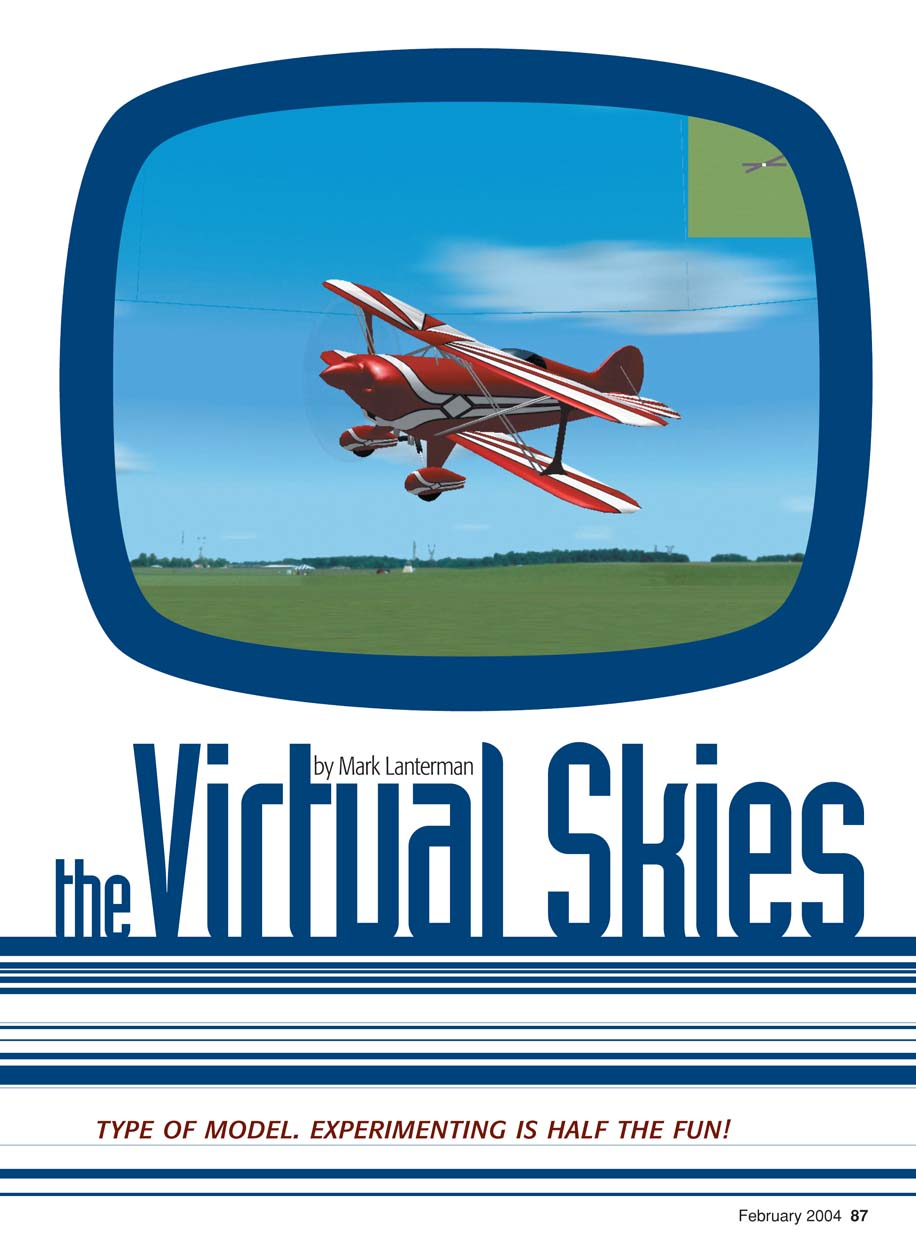
All of these improvements have brought us up to today's simulators, which include photo-realistic graphics, accurate flight characteristics, interfaces that allow control using actual RC transmitters, and the ability for pilots around the globe to fly together at virtual airfields via the Internet. Simulators have come a long way. They are now a viable alternative to traditional training methods.
The Virtual Skies
TYPE OF MODEL. EXPERIMENTING IS HALF THE FUN!
Using buddy cords or other forms of traditional flight training is still important. However, nothing in this article should convince you to attempt to fly your first model by yourself. Although the simulator can give you all the skills needed to take off, fly, and land your model successfully, it does not teach you how to properly build and set up your model, start the engine, adjust the needle valve, or spot problems on the ground. Enlist an experienced modeler’s help when flying in the real world.
People normally ask how long it will take them to learn to fly using a simulator, but there’s no firm answer because people learn at different speeds. A rule of thumb is that when you can fly competently around the sky where you want and take off and land where you are supposed to, you’re probably ready to try the real thing.
A simulator will allow you to learn at a more rapid pace than you ever could at the field. Most flying sites have one or two nights a week set aside for training; you can get in three or four flights, but that’s pushing it. With a simulator you can learn any time you’re home—at night, when it’s too windy, when it’s too cold, when it’s raining, or when it’s snowing. As long as you have electricity and free time, you can be in the air—virtually.
It’s time to jump into flight simulation. I’ll tackle this in five steps:
- Types of simulators that are available today. Please don’t confuse this article with a simulator “shoot-out” with one coming out the winner. There will be no side-by-side comparisons. This is more of a buyer’s guide; I’ll mention all commercially available packages on the market and a few found only on the Internet.
- Computer requirements
- Using a flight simulator correctly
- Using advanced features
- Commercially available simulators
Types of Simulators
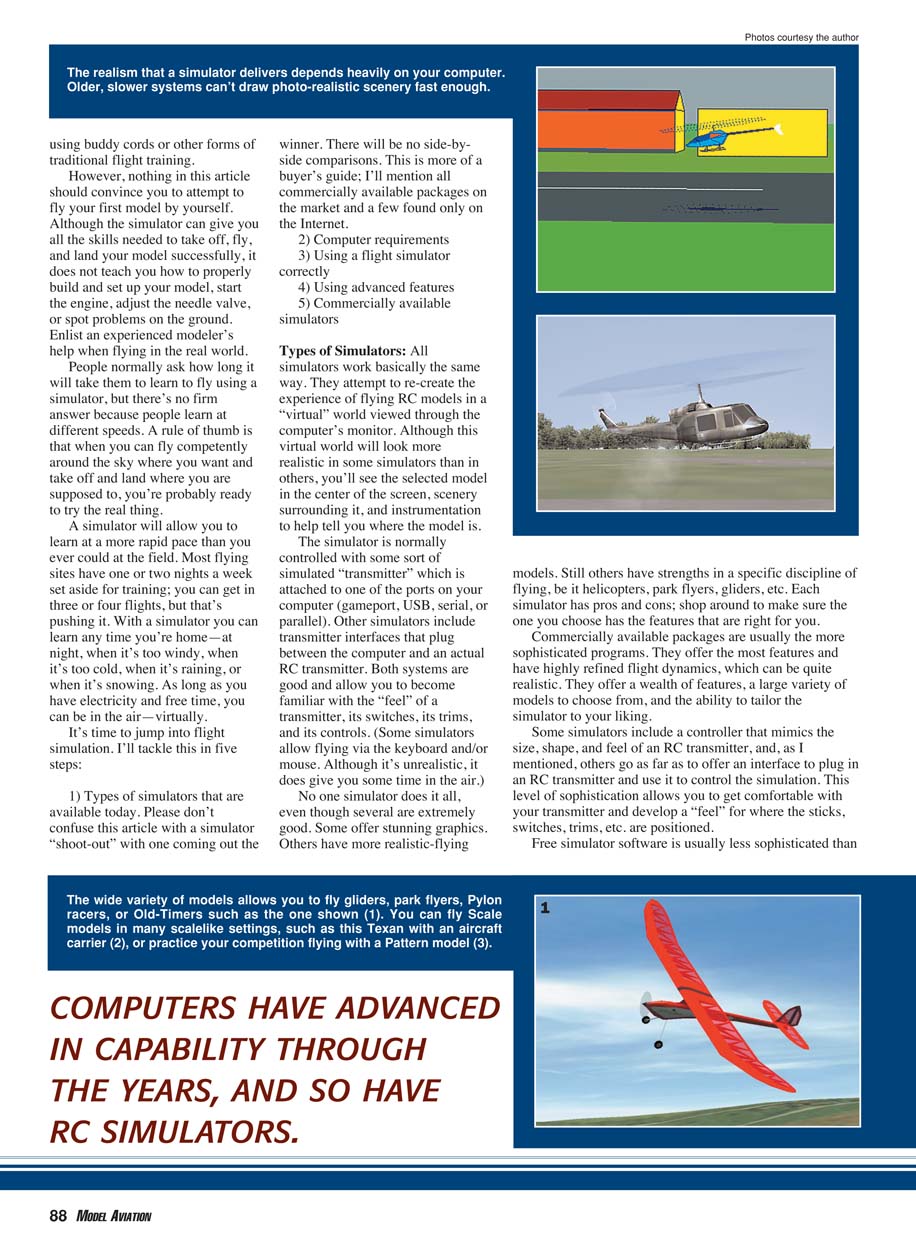
All simulators work basically the same way. They attempt to re-create the experience of flying RC models in a “virtual” world viewed through the computer’s monitor. Although this virtual world will look more realistic in some simulators than in others, you’ll see the selected model in the center of the screen, scenery surrounding it, and instrumentation to help tell you where the model is.
The simulator is normally controlled with some sort of simulated “transmitter” which is attached to one of the ports on your computer (gameport, USB, serial, or parallel). Other simulators include transmitter interfaces that plug between the computer and an actual RC transmitter. Both systems are good and allow you to become familiar with the “feel” of a transmitter—its switches, its trims, and its controls. (Some simulators allow flying via the keyboard and/or mouse. Although it’s unrealistic, it does give you some time in the air.)
No one simulator does it all, even though several are extremely good. Some offer stunning graphics. Others have more realistic-flying models. Still others have strengths in a specific discipline of flying, be it helicopters, park flyers, gliders, etc. Each simulator has pros and cons; shop around to make sure the one you choose has the features that are right for you.
Commercially available packages are usually the more sophisticated programs. They offer the most features and have highly refined flight dynamics, which can be quite realistic. They offer a wealth of features, a large variety of models to choose from, and the ability to tailor the simulator to your liking.
Some simulators include a controller that mimics the size, shape, and feel of an RC transmitter, and, as I mentioned, others go as far as to offer an interface to plug in an RC transmitter and use it to control the simulation. This level of sophistication allows you to get comfortable with your transmitter and develop a “feel” for where the sticks, switches, trims, etc. are positioned.
Free simulator software is usually less sophisticated than commercially available packages, but some are quite good and can get you airborne. Although some free versions offer surprisingly good graphics, the realism and features don't compare to commercial offerings. What do you want for free?
What these free simulators do offer is a great way to see what RC flight simulation is all about without having to pay. They are normally controlled with the keyboard and mouse, but some do offer the capability of using existing joysticks or commercially available transmitter interfaces.
The programmers who make their software available for free are to be commended. A simulator involves an immense amount of programming and is quite time consuming. Even though they may never see a single dollar for their efforts, these programmers continue to help our sport/hobby grow by helping to bring in new people. Keep up the good work!
Computer Requirements
As you may have gathered, all RC flight simulators require a computer. There are a number of titles for gaming consoles such as PlayStation, but they are more games than true simulation.
All simulators on the market these days are written for Windows-based systems; there is nothing specifically for the Windows NT or Macintosh platforms. There are some work-arounds that give Mac users some hope, but they don't offer near what the Windows systems do.
If you have a computer system that is less than three years old, it should be able to run most simulators fine. You may have to upgrade your video card to improve detail, resolution, and frame rate. Also, check to make sure that your computer has the proper port for connecting the simulator's controller. Some use a parallel port, some use a USB port, and others use a gameport/joystick port.
Mac users have two options:
- Purchase Virtual PC. This software emulates a Windows computer system on your Mac; actually, the Mac and Windows systems run simultaneously. Because of this, the Windows program runs slower on a Mac than on a dedicated Windows machine. Although this system will work, it is so slow that it is almost unusable at times.
- Try browser-based or cross-platform free simulators. At the end of this article is a listing of vendors that includes a free simulator (JVRRC) that runs in an Internet browser and uses a mouse for control. It does not offer the features, sophistication, or flight dynamics of the commercial programs, but it can give you a taste of RC flying.
Regardless of the computer/simulator combination you choose, follow the directions and installation should go smoothly. If you do run into problems, check the Internet for any updates or bug fixes. Now you should be ready for your first lesson—virtually speaking.
Using RC Flight Simulators Correctly
Your program is installed, your controller is calibrated, and you're ready to go. Rather than just picking a trainer, slamming the throttle forward, and zipping around the sky, think about how to approach learning on a simulator.
Don't think of this as a game. Although many of the simulators have gaming features, don't use them yet. Don't see how fast you can fly, how big of a crash you can make, or how many things you can hit with the airplane. A simulator makes it easy to fall into such a routine because you can simply hit the reset button when things go wrong.
Instead, think of each airplane as you would in real life: as an investment. A typical Almost Ready-to-Fly trainer costs approximately $300 once everything is installed. The trainer you use on the simulator should be viewed the same way. Try to take care of it and keep it in one piece.
As much as the program will allow, try to mimic what you would do in real life: taxi in the correct areas, take off from the runway, don't fly over or behind the pit area, and land on the runway. These skills require time to develop, but taking this approach from the start will be key to your success when you try to fly at your local field.
Almost every simulator has the ability to add wind and gusts. Although these features are not active by default, you should always use them. Seldom will you fly outdoors when the wind isn't blowing. If you aren't used to flying with the wind, you won't know how to compensate for it and disaster is almost guaranteed.
Make a few trips to your local field and take the time to note the wind conditions. From which direction does the wind come? How strong is it? What about wind gusts? Once you know what the wind is like, program the information into your simulator. You will be flying in conditions that are as close as possible to what you'll experience when you fly your real model.
I won't go into the basics of flying here; they are covered in your simulator's manual and, more recently, in MA's "From the Ground Up" series. Instead I'll share a few tips and pitfalls of simulators.
- This is not a game. To be successful you need small, smooth stick movements. There will be a time for more radical and exciting flying, but that's not now. Envision that you're piloting an airliner full of people; the smoother you are, the less the ground crew will have to clean up after landing!
- Try to keep the model close to you, but not dangerously close. Many make the mistake of flying the airplane so far away that it is a speck in the sky. Keeping it near makes it larger, so it's easier to see in which direction the airplane is going.
- Be aware of limited depth perception. Regardless of the simulator and how detailed the picture is, it is a two-dimensional interpretation of a three-dimensional environment. Therefore, it is hard to tell distance accurately. Use the airplane's shadow and any on-screen instrumentation to guide you. In time you'll develop a "feel" for this and will rely less on the instruments, but the shadow is always helpful—especially when lining up the model for landing.
- Practice controlled flying. Once you've flown the model a few times and have a basic understanding of the controls, start making the model fly where you want it to go rather than doing constant course corrections when you get into trouble. Try a simple racetrack pattern: fly parallel to the runway about 30 feet from the far edge, make gentle 180° turns away from the pit area, and keep consistent altitude and speed. When confident, reverse the pattern, try figure eights, and practice 360° turns.
- Watch for limited viewing angle. The human visual system can see roughly 180° horizontally and 140° vertically, but most simulators have a field of view of approximately 30° in each direction. Because of this limitation, it is easy to lose track of where the ground is. Some simulators include features to help—grids in the sky, wide-angle views, automatic zooms, etc.—but you will have to get used to this constraint.
- Treat landings seriously. Landing is the hardest maneuver for a newcomer. Most simulators will allow you to land anywhere and at almost any speed; in real life you can't taxi at 100 mph or land as hard as you want without tearing the model apart. With a real model you need to aim for the runway and land at speeds just above stall speed. Work on doing the same thing in the simulator. Simulators give you the chance to make mistake after mistake when landing, with the hope that you will learn how to improve for the next time. It's all about managing airspeed and being smooth.
If you keep practicing everything above, something will happen without you realizing it: the more you practice, the less you'll have to "think" about what to do. This thinking will be replaced with automatic reactions that are learned. When this happens, you have "arrived" and it will be time to move on to more advanced flying.
Advanced Simulator Features
Congratulations. Now that you have become proficient, it's time to have some fun and explore advanced features.
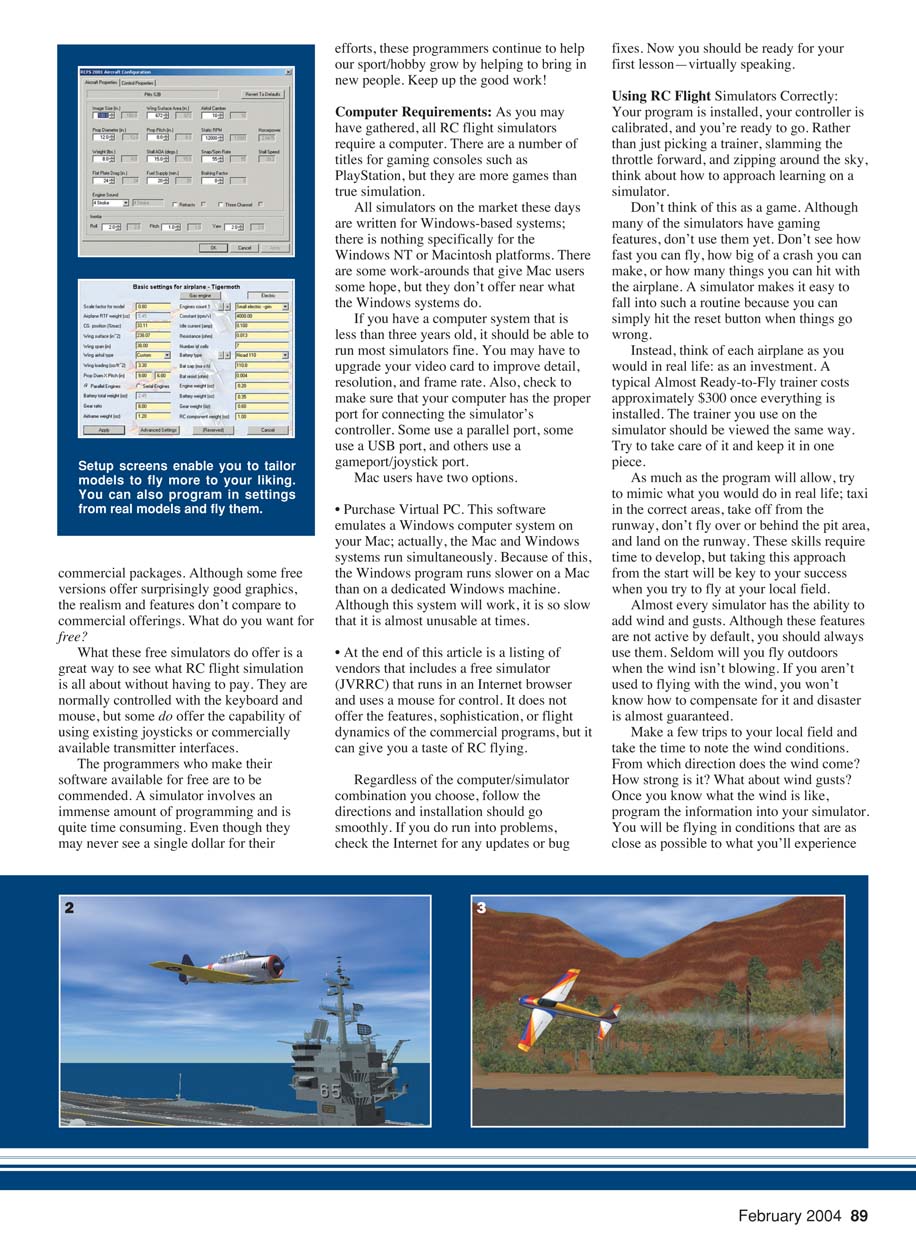
- Explore the models. Now that you can fly, choose other models available to you. Most simulators include Aerobatics models, gliders, Scale models, park flyers, and maybe a Pylon racer or Pattern model. Each model will fly differently; some differences are subtle, others dramatic.
- Try new maneuvers. With each new model you explore, try loops and rolls, riding the wind with a glider, precision maneuvers with a Pattern or Aerobatics model, or having fun with a park flyer. Fly as though it is a real model and do your best to bring it back in one piece.
- Experiment by customizing aircraft. All simulators give you the capability to edit models' parameters: change engines or motors, propellers, airfoils, etc. Start with a model close to the aircraft you want and edit parameters to match. Many simulators let you edit the model "bitmaps" so you can create any color scheme you like.
- Change your flying field. Look through other fields available and find one that more closely matches your local field. Some programs allow you to move trees, buildings, and terrain to make it more realistic.
- Use interactive features. Some simulators let you add objects in the virtual field (pylons, limbo poles, other models) and some allow networked flying with other owners over LAN or the Internet. Imagine helping someone through a maneuver when the student is in another city, holding a virtual fun-fly with competitors logging in from home, or practicing formation flying with teammates. Note: everyone must use the same make and version of the software for compatibility.
- Purchase add-on packages. Several simulators offer add-ons—additional models, better graphics, extra flying fields—that expand the program's capability.
I hope you have a better understanding of what RC flight simulators are and how they can make you a better pilot than you are right now. They are amazing pieces of technology; some are better than others, but all will do a fine job of teaching you how to fly. Do your homework. Look into what best meets your budget and what will run on your computer system. Remember that all simulators are not the same; they don't all have the same features nor can they all mimic the same types of flying.
Once you've made your choice, use it properly. The only way to learn to fly with a simulator is to practice and approach every flight like it's the real thing. Takeoffs will seem easy, and landings will take longer to master than anything else. You will crash and you may get frustrated, but don't give up. Learn from your mistakes, and you'll be a better pilot for it.
Mark Lanterman 5655 David Pl. Fairfield, OH 45014 mark@airbornemedia.com
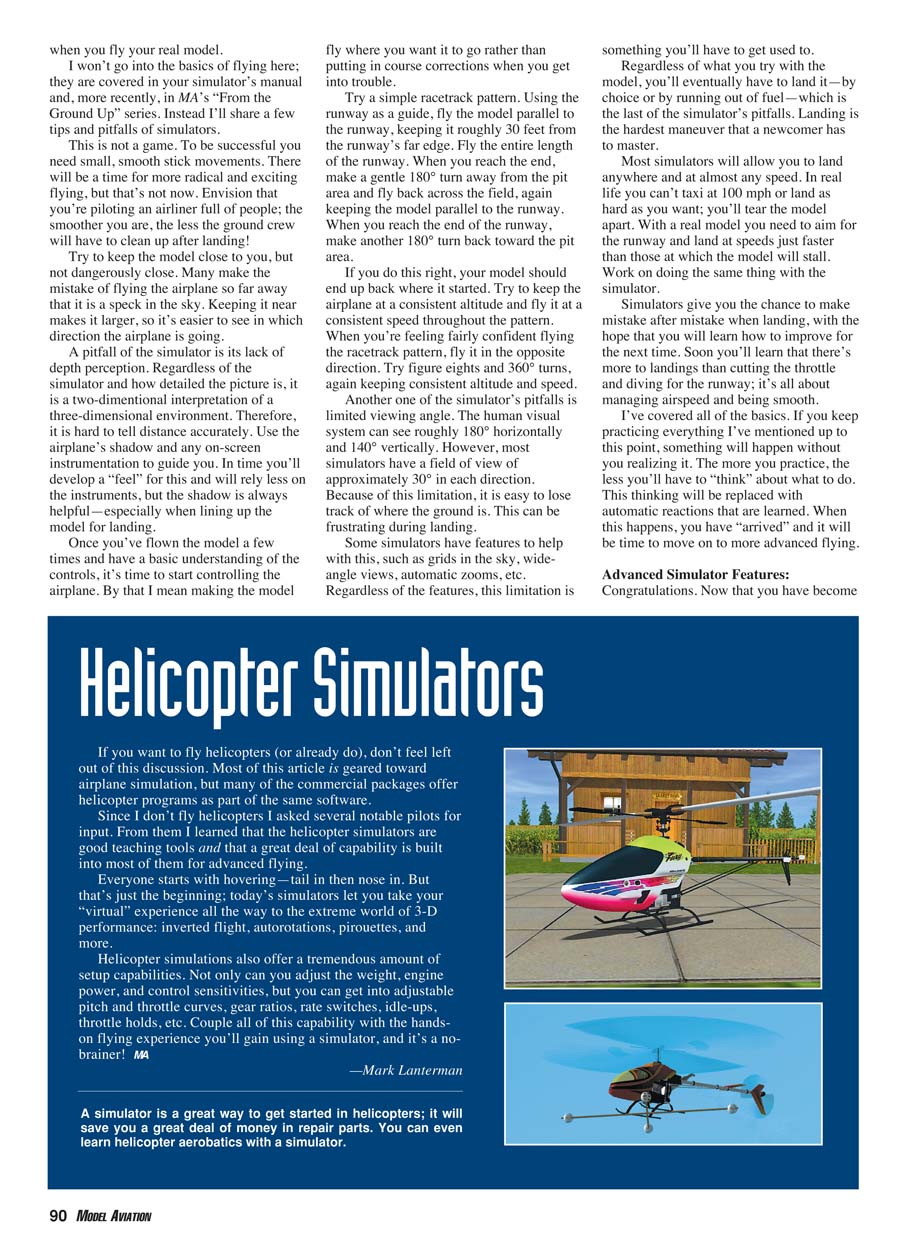
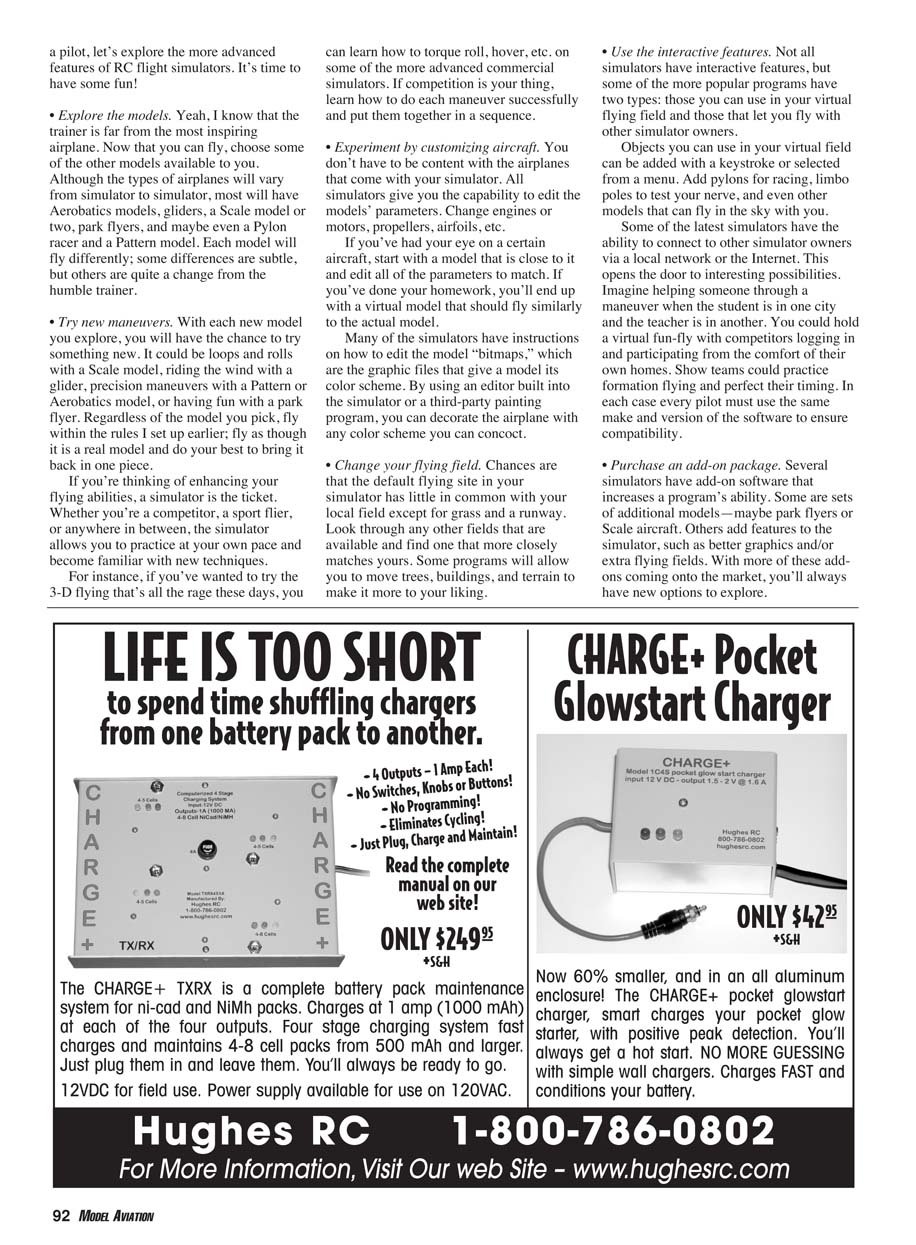
Helicopter Simulators
If you want to fly helicopters (or already do), don't feel left out. Most of this article is geared toward airplane simulation, but many commercial packages offer helicopter programs as part of the same software.
Helicopter simulators are good teaching tools and include a great deal of capability for advanced flying. Everyone starts with hovering—tail in then nose in—but that's just the beginning. Today's simulators let you take your "virtual" experience all the way into the extreme world of 3-D performance: inverted flight, autorotations, pirouettes, and more.
Helicopter simulations also offer a tremendous amount of setup capability. You can adjust weight, engine power, and control sensitivities, and get into adjustable pitch and throttle curves, gear ratios, rate switches, idle-ups, throttle holds, etc. Couple all of this with hands-on flying experience in a simulator, and it's a no-brainer: a simulator is a great way to get started in helicopters and will save you a great deal of money in repair parts. You can even learn helicopter aerobatics with a simulator.
—Mark Lanterman
Free Simulators
- JVRRC (Japanese site)
www1.jawlink.ne.jp/koji-y/trash/010/java.htm
- FMS (Flying Model Simulator)
http://n.ethz.ch/student/moeller/fms/index_e.html
- FlyRC
www.pivot.net/~acarr/ron/ron.htm
- PRE-Flight
- Flight simulator for R/C model
http://laurent.saintmarcel.free.fr/simulator/
- RC-AirSim
www.fabricated-reality.com/RC-AirSim.htm
Commercially Available RC Simulators
AeroFly: Ikarus USA 5876 Enterprise Pkwy. Billy Creek Commerce Center Fort Myers, FL 33905 (239) 690-0003 http://ipacs.de/afold/ $49.90 for software only Minimum computer requirements:
- Operating system: Windows 95 or 98
- Processor: 100% Pentium-compatible processor with at least 133 MHz
- Memory (RAM): 32 MB
- Hard-drive space: 20 MB
- Video card: Graphic card with at least 2 MB
- Other: CD-ROM drive; if joystick control, 100% DirectX-compatible joystick; if transmitter interface control, serial port and transmitter with trainer port
AeroFly Professional: Ikarus USA 5876 Enterprise Pkwy. Billy Creek Commerce Center Fort Myers, FL 33905 (239) 690-0003 http://ipacs.de/aerofly/ $149.95 for software only Minimum computer requirements:
- Operating system: Windows 98/ME/2000/XP with DirectX version 8.0a or higher
- Processor: 100% Pentium II-compatible processor with at least 450 MHz
- Memory (RAM): 64 MB
- Hard-drive space: 160 MB
- Video card: OpenGL 1.0-compatible graphic card with at least 16 MB
Cockpit Master: MachineWorks Northwest 1813 Boulder Ridge Ct. N.W. Salem, OR 97304 (503) 581-4840 www.cockpitmaster.com/ $199.99 for software with transmitter, $79.95 for software only Minimum computer requirements:
- Operating system: Windows 95 or 98 (DirectX 7.0a or above)
- Memory (RAM): 32 MB
- Video card: 3D accelerated video card
Cockpit Master Backyard Edition: MachineWorks Northwest 1813 Boulder Ridge Ct. N.W. Salem, OR 97304 (503) 581-4840 www.cockpitmaster.com/ $50 for software with interface cord, $29.95 for software only
CSM V10: Horizon Hobby Distributors 4105 Fieldstone Rd. Champaign, IL 61822 (217) 452-1913 http://www.rcmodels.org/csm/csm_simulator.htm $159.95 Minimum computer requirements:
- Operating system: DOS 4.00 or later or Windows 95
- Processor: Pentium 120 or faster
- Memory (RAM): 1 MB
- Video card: Fully VESA compatible (Version 1.02) SVGA with 1 MB of VRAM
- Other: Parallel port
Easyfly: Ikarus USA 5876 Enterprise Pkwy. Billy Creek Commerce Center Fort Myers, FL 33905 (239) 690-0003 http://ipacs.de/easyfly/ $69 for software with transmitter interface Minimum computer requirements (summary):
- Operating system: Windows 95/98/ME/2000/XP with DirectX version 8.0a or higher
- Processor: 100% Pentium II compatible
- Other requirements: Vary by package; check vendor for details
---
If you want one-on-one help while starting out, most flying sites offer training nights with experienced flyers—take advantage of any instruction that is offered and ask questions.
Transcribed from original scans by AI. Minor OCR errors may remain.

